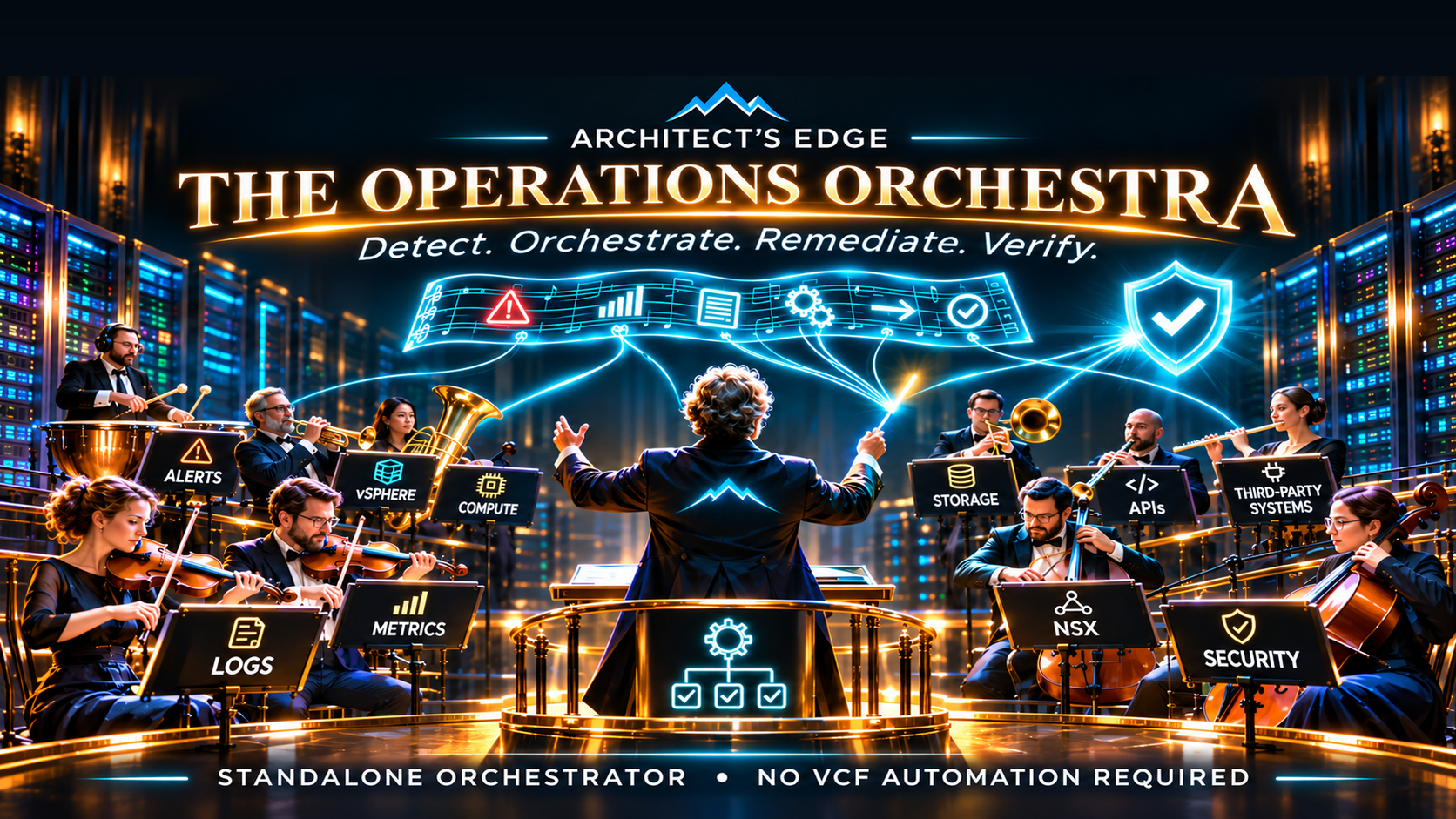
VCF Operations Orchestrator: Deploy Standalone, Automate Remediation — No VCF Automation Required
An operational automation guide for supported VMware Aria Operations 8.x and VCF Operations 9.x environments. Deploy a dedicated Orchestrator, connect the appropriate management pack, and convert alerts into approved or automated actions. The illustrated installation path uses VCF 9.x; the underlying design is older and does not require vRA, Aria Automation or VCF Automation.
This follows our earlier coverage of VCF 9.1.1 Operations improvements and VCF identity, credentials, and RBAC. Here’s a misconception worth correcting: you do not need to deploy VCF Automation simply to use Orchestrator for operational remediation. VMware Cloud Foundation Operations Orchestrator, formerly vRealize Orchestrator (vRO) and Aria Automation Orchestrator, remains available as a separately deployable workflow appliance. VCF Operations can integrate with it through the Management Pack for Orchestrator, letting infrastructure events, symptoms, recommendations and actions participate in a controlled response loop. This is not a hypothetical architecture: the dedicated appliance is documented, the APIs are published, and Broadcom’s October 27, 2026 guidance explicitly lists the Orchestrator management pack among those maintained for VCF Operations 9.1.1.
For an example of why we need to connect vulnerability knowledge with reliable operational action, see our recent SDDC Manager vulnerability response. The most exciting outcome isn’t installing another VM. It’s finally moving from “We detected it” to “We enforced the policy, verified the result, and recorded the evidence.” A change to an ESXi SSH service makes a great first exercise, but the same Operations-to-Orchestrator pattern can be extended to supported third-party systems, metrics, logs, symptom groups and API-derived object states. We’ll make the deployment concrete first and then show what to build with it.
Credit where it’s due: Jon Schulz’s ESXi firewall-alert walkthrough and his Operations-to-Orchestrator integration guide make the detection-to-action pattern tangible; we discussed and demonstrated its automated form during Architect’s Edge Live (24:37). And Cosmin Trif’s illustrated external Orchestrator deployment guide is an excellent companion to Broadcom TechDocs. Cosmin and I worked together for years, and I’m delighted to highlight his work here. Another longtime colleague, Marc De Grasse, documented the Aria Operations/Orchestrator 8.18 management-pack authentication snag and its release-specific workaround; that’s especially useful for readers running the earlier generation rather than VCF 9.x. Marc also covers indexing fields in VCF Operations for Logs, a practical optimization when log-based detection needs responsive queries. None of these contributions should get lost behind a product diagram: they are the practical building blocks readers can reproduce.
For the immediate payoff, jump to 15 real IT tickets you can turn into repeatable workflows below. They are deliberately written as the problems operators actually receive, not generic “automation use cases.”
Follow these proven guides from deployment to your first automated action
You don’t have to reconstruct years of community expertise. Treat the following as a guided reading path: our sections explain the design and checkpoints; these authors show the detailed screens and work they’ve already tested. Match their procedures to your Operations and Orchestrator releases, because 8.x Aria/vRealize and 9.x VCF package names, UI paths and authentication methods can differ. Those differences do not mean the automation model requires an upgrade to 9.x.
| Your next step | Go straight to the demonstrated procedure |
|---|---|
| 1. Deploy and authenticate the external OVA | Cosmin Trif: standalone Orchestrator 9, OVA and authentication; compare with the official appliance deployment procedure |
| 2. Find and install the management pack | Brock Peterson: VCF Operations 9 Management Pack Marketplace; use the official Orchestrator adapter configuration for product-specific requirements |
| 3. Discover workflows and expose an Operations action | Brock: Orchestrator management pack, workflow/action binding; Broadcom KB 396083 explains additional package discovery for 8.18, not a universal VCF 9.1.x fix |
| 4. Build a real log-driven security alert | Jon Schulz: ESX firewall-change monitoring via Logs and Operations, followed by his Orchestrator integration walkthrough |
| 5. Associate a recommendation and automate an eligible action | Brock: alert, symptom, recommendation, action and policy automation; Broadcom KB 447010 highlights re-binding actions and checking the automated enforcement policy (its authentication fix is embedded-Orchestrator-specific) |
| 6. Invoke and verify the workflow | Current Orchestrator API and authentication, start execution, inspect execution, and read the logs; see our Architect’s Edge demonstration |
| 7. Prove Operations is not limited to VMware infrastructure | Dale Hassinger: Zoom status via Management Pack Builder and agentless Windows service monitoring show third-party telemetry; a separate supported Orchestrator action and policy are still needed for remediation |
Version guardrail: Brock’s 2023 Orchestrator management-pack walkthrough, 2024 automated-actions walkthrough, and Broadcom KB 396083 demonstrate the mechanisms on older releases. Do not copy legacy XML edits, older authentication settings, or adapter-version numbers into VCF 9.1.x. For current behavior, the compatible management pack, current Orchestrator management-pack TechDocs and KB 454432’s 9.1.1 upgrade warning take precedence. The full 60-minute SSH timer and exception policy remain a workflow design to build and test, not a downloadable turnkey automation claimed by these sources.
Quick answer: What needs to be deployed?
| Component | Required for this guide? | Purpose |
|---|---|---|
| Aria Operations 8.x / VCF Operations 9.x | Yes; use a supported release | Inventory, metrics, symptoms, alerts, policies, recommendations |
| Aria Automation Orchestrator 8.x / VCF Operations Orchestrator 9.x | Yes — dedicated appliance | Workflow execution, plugins, scripting, REST APIs |
| Management Pack for Orchestrator | Yes — compatible with your Operations and Orchestrator releases | Make Orchestrator workflows/actions available through Operations |
| Aria Operations for Logs / VCF Operations for Logs | Useful for the SSH example | Recognize audit events and forward relevant conditions |
| VCF Automation (formerly vRA/Aria Automation) | No | Separate self-service and automation platform, not a prerequisite here |
| ACC, vDefend or Avi | No | Optional additional enforcement and application-security targets |
Important: “Standalone deployment supported” does not mean the appliance has a separate or unlimited free license. Confirm the applicable VCF/VVF entitlement, component compatibility, identity integration and lifecycle guidance for your installation. Likewise, a management pack exposes supported integrations/actions; it does not turn every object into an automatically remediable object without configuration.
Release applicability: the mechanism predates VCF 9
Do not read “VCF 9” in a screenshot as a mandatory upgrade. The alert → symptom → recommendation → action → policy automation pattern is established in earlier Aria Operations versions, and standalone Orchestrator support is not new. Brock Peterson showed the Orchestrator management pack with a standalone connection option in 2023, and his January 2024 article demonstrated automated alert actions through Operations policies. Broadcom KB 396083 specifically documents custom Orchestrator workflow discovery in Aria Operations 8.18.x.
| What you’re running | How to follow this article |
|---|---|
| vSphere 8.0 Update 3 with supported Aria Operations 8.18.x and Aria Automation Orchestrator 8.18.x | The operational design applies. Use the matching Aria 8.x appliance, management pack and authentication/documentation paths. For the standalone architecture, see Mayank Goyal’s overview of standalone versus embedded Orchestrator; use the 8.x-era Brock walkthrough and Broadcom discovery KB for the matching adapter behavior. |
| VCF Operations / VCF Operations Orchestrator 9.x | The deployment examples in this article illustrate the 9.x OVA and interfaces. Match the installed management pack and exact release; a fix explicitly labeled 9.1.1 only matters to the environments affected by that release. |
| Future supported releases | Keep the architecture; verify the current lifecycle, UI, API, adapter compatibility and deprecations from the release documentation before copying any command or screenshot. This article does not presume capabilities or dates for an unreleased version. |
Think of the product names as a version map, not a feature gate: vRealize/Aria Operations became VCF Operations; Aria Automation Orchestrator became VCF Operations Orchestrator. The precise compatibility of your vSphere, Operations, Orchestrator, adapter and plug-ins must still be confirmed in Broadcom’s Product Interoperability Matrix. Just as importantly, supported entitlement and support lifecycle can differ by release. This is a workflow capability, not an instruction to remain on unsupported software.
1. Plan the dedicated appliance before touching the OVA
Decide where the workflow engine will run, which management network it will use, and how it will authenticate. A dedicated instance can give an operations team control over a bounded remediation catalog without treating VCF Automation’s cloud-consumption organization as the mandatory workflow entry point. You still need to design availability, backups, credential management, and access control in line with your organization’s production standard.
Choose your target before proceeding: a single appliance is a reasonable lab starting point; a production deployment may require the supported three-node HA topology, load balancer, certificate chain and a recovery plan. For a well-illustrated 2026 planning walkthrough, Arun Nukula’s VCF Operations Orchestrator cluster guide covers the per-node resource plan, internal Kubernetes networks, load-balancer checks and cluster bring-up. Verify sizing and topology against the official deployment documentation for the specific OVA release being installed; don’t assume a single-node lab satisfies your production availability objectives. Your firewall and access plan must permit the management station, VCF Operations collector/adapter, identity provider, DNS/NTP, vCenter and intended workflow targets to communicate through their required supported endpoints.
Record the Orchestrator FQDN, static IP address, gateway, subnet/netmask, DNS servers, vSphere cluster, datastore and target port group. Decide whether the deployment should use vCenter Single Sign-On, a supported VCF identity-broker method, or another supported authentication configuration. Prepare an appropriate administrator identity and service-account permissions. Validate mutual name resolution and certificate trust before first boot.
DNS is not optional housekeeping here. Broadcom KB 447531 documents a fresh standalone 9.0.2 deployment that fails with run-bootstrap.service failed because the appliance cannot resolve its own short hostname. Plan A/forward, appropriate short-name resolution and PTR/reverse DNS correctly before deployment; confirm name and IP resolution from the relevant network.
# Run from an authorized machine with the same DNS view as the appliance
nslookup orchestrator.example.com
nslookup orchestrator
nslookup 192.0.2.30

# These are documentation-only examples; substitute your own FQDN/IP.
Also make sure the appliance’s internal Kubernetes network CIDR will not overlap with relevant production networks. Review the OVA’s current sizing, storage, time-sync and other properties from your actual target release rather than relying on values captured in screenshots from a prior release. Broadcom’s KB 374792 documents a historical first-boot issue involving NTP values on certain 9.0.0 and older OVA builds, corrected in 9.0.1; don’t apply that old workaround indiscriminately to a current appliance.
2. Download and deploy VCF Operations Orchestrator — without deploying VCF Automation
The walkthrough below illustrates the VCF Operations Orchestrator 9.x OVA. If you have supported Aria Operations and Aria Automation Orchestrator 8.x instead, select the matching 8.x appliance, management pack, identity and lifecycle instructions; do not try to deploy the 9.x OVA merely to reproduce the alert-to-action pattern. For 9.x, the authoritative starting point is Broadcom TechDocs: Download and Deploy the VCF Operations Orchestrator Virtual Appliance. For an independently documented practical walkthrough, Cosmin Trif’s Deploying an External VCF Operations Orchestrator 9 Appliance shows the actual vSphere OVA wizard and authentication CLI sequence.
In the Broadcom Support Portal, open the entitled VMware Cloud Foundation product/downloads and select VMware Cloud Foundation Operations Orchestrator. Download the appropriate 9.x OVA, matching the release and support requirements for your environment. Broadcom KB 401497 explains where the components are located in the revised 9.x download catalog. Don’t substitute VCF Automation’s appliance or assume Orchestrator has been removed because it is not part of your initial Installer screens.
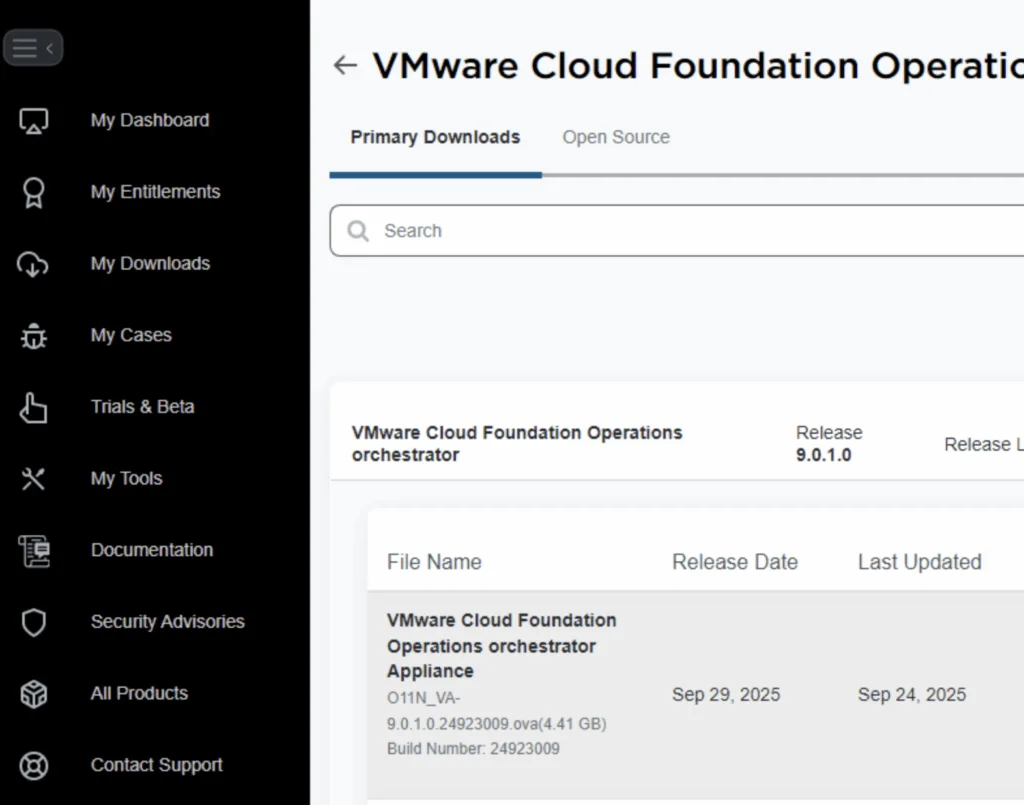

From vSphere Client, select the destination cluster/host and choose Deploy OVF Template. Upload the Orchestrator OVA, provide a descriptive virtual machine name, select compute and storage, accept the agreement, choose a suitable management port group and complete the template’s current network, hostname, password and internal-cluster settings. Validate the values against your DNS plan and finish deployment. Power on the appliance and allow its internal services to initialize.

Cosmin’s walkthrough includes the deployment wizard screenshots, but those describe a particular 9.0.1 appliance build and must be treated as historical UI references, not as guaranteed 9.1.1 field names. The OVA and corresponding official deployment documentation for your release take precedence.
Checkpoint: The appliance should boot without first-boot/bootstrap failures, its FQDN should resolve consistently, and its management interface should become reachable over HTTPS from authorized administration networks. From the appliance console or an authorized administration session, check kubectl get pods -A for unhealthy workloads; review journalctl -u run-bootstrap.service if first boot fails. After initialization, a read-only request to https://orchestrator.example.com/vco/api/healthstatus should return the supported health payload (Arun’s cluster walkthrough demonstrates a RUNNING response). Confirm TLS trust rather than using curl -k as a permanent health check. If initialization fails, resolve the underlying error before proceeding with authentication or integration.
3. Configure a supported authentication provider
For a standalone deployment, you don’t have to select VCF Automation as the Orchestrator identity provider. Cosmin documents both vSphere SSO and VCF Identity Broker approaches, alongside options for teams choosing to integrate with a VCF Automation organization. The following illustrates the vSphere SSO path for a lab or an environment where that identity architecture is acceptable. Use a suitably authorized identity and match the command syntax to your exact release’s help output:
# On the dedicated Orchestrator appliance, as an authorized administrator
vracli vro authentication set \
  -p vsphere \
  --hostname https://vcenter.example.com \
  --username administrator@vsphere.local \
  --tenant vsphere.local \
  --admin-group Administrators \
  --admin-group-domain vsphere.local

# Inspect the staged configuration
vracli vro authentication

# Apply it; this restarts the necessary services
/opt/scripts/deploy.sh
Replace the illustrative FQDN/domain/administrator values. The authentication command should prompt for required secrets; do not embed passwords or long-lived service credentials in scripts, documentation or ticket comments. After applying the settings, confirm that authorized administrators can reach https://orchestrator.example.com/orchestration-ui/ and that unauthorized users are denied access. If you need VCF Identity Broker or OAuth-based authentication, follow the corresponding supported option rather than forcing the vSphere SSO example onto a different design.
Security caveat worth reading before production: Broadcom KB 440608 documents that setting com.vmware.o11n.sso.basic-authentication.enabled=false does not disable API Basic Authentication on a standalone Orchestrator configured with vSphere authentication. Broadcom KB 427076 also distinguishes embedded versus external Orchestrator authentication and recommends token-based access. Choose the identity design to match your security requirements, restrict management exposure and use least-privilege credentials.
Another upgrade-specific pitfall: KB 407495 documents missing authentication-provider configuration after upgrading certain standalone 8.18.x appliances to 9.0; Broadcom reports the issue corrected in 9.0.1. That’s an upgrade scenario, not a reason to alter clean-install commands blindly.
4. Connect the dedicated Orchestrator to VCF Operations
At this point you have a functioning workflow engine, but Operations does not automatically know which actions it can offer. Install the VCF Management Pack for Orchestrator from the compatible VMware Marketplace/Solutions Catalog package, using the official management-pack configuration procedure for the adapter fields and authentication requirements of your environment.
For VCF Operations 9.x, start at Administration > Integrations > Marketplace and look for the compatible Orchestrator management pack; download and install it using the supported Marketplace process where available. Brock Peterson illustrates the VCF 9 Marketplace workflow. If your environment uses an offline or manually downloaded PAK, follow the supported repository/package-install procedure for its release rather than assuming the Marketplace is reachable. Then open Administration > Integrations > Accounts and configure the Orchestrator adapter instance according to the official management-pack guide. Supply the dedicated appliance endpoint and an authentication method appropriate to your provider, validate certificates, and test connectivity. Confirm adapter health, package discovery, workflow/action availability, managed object types, and associated recommendations before attempting automation.
Do not copy authentication instructions written specifically for embedded Orchestrator into an external deployment without checking the differences. Broadcom KB 447010 describes an embedded VCF Automation 9.0 integration requiring a service-account refresh token after upgrade; it also documents the need to rediscover/reapply actions, reselect recommendation actions, and verify the active policy’s automated enforcement setting. The latter steps are useful as a troubleshooting checklist, but the precise authentication procedure depends on your deployment model.
Upgrade-specific note, not a prerequisite: If you upgrade VCF Operations to 9.1.1, Broadcom KB 454432 (updated October 27, 2026) names the Orchestrator management pack among those needing a compatible update. An old adapter may stop collecting or exposing expected integration data. Verify the version, adapter health, discovered actions and recommendations after upgrade; do not assume that a previously functioning remediation still works.
A separate vCenter connection may still be required
Identity-provider configuration does not automatically populate workflow inventory. If a workflow must act on a VM, ESXi host or vCenter object, check whether the Orchestrator vCenter plug-in has a working endpoint and that the target objects appear under its Inventory. If not, use the built-in Library > Workflows > vCenter > Configuration > Add a vCenter Server instance workflow (find it by searching for vCenter and configuration); supply the supported vCenter endpoint, trust configuration and a least-privileged account/session option suitable for the authentication design. Broadcom KB 455887 explains the missing-VM inventory symptom and this remedy in a VCF Automation 9.1 context; the general vCenter plug-in requirement is relevant to standalone workflows, but validate your chosen session mode and privileges against the standalone release documentation. Checkpoint: you can select the intended VM/host as a workflow input before trying any action against it. For plug-in sessions that later become unusable, see KB 435506.
5. Build a no-risk first workflow and exercise the REST API
Your first smoke test should require no input and change nothing. In the Orchestrator client, create a workflow named AE-Operations-Smoke-Test with no input parameters. Add a single Scriptable Task with the JavaScript line below, save the workflow in a package that the Orchestrator management pack is configured to discover, and run it manually. A workflow that exists in Orchestrator but is not in a discoverable package may never appear as an Operations action; consult the management-pack package-discovery procedure, noting that KB 396083 documents the behavior for 8.18 rather than promising an identical 9.1.1 interface. Confirm that its execution finishes successfully and the workflow log contains AE_WORKFLOW_OK. This establishes a known-good baseline independent of vCenter inventory, firewall policy or a production SSH service.
System.log("AE_WORKFLOW_OK");Keep the smoke test and the Operations action-binding test distinct. First prove that the input-free workflow executes successfully in Orchestrator and via the API. Then configure the management pack to discover its package using the reference path above. To expose an Operations object action, follow the version-appropriate workflow/action binding procedure; if the adapter requires a typed target input, add a read-only wrapper workflow with that input and map it to the matching Operations object type. Do not assume an input-free workflow can automatically bind to every object type. Confirm that an authorized operator can invoke the discovered action from a suitable test object in Operations and inspect the corresponding Orchestrator run. Only then attach the eligible action to a synthetic test alert’s recommendation and enable automated enforcement in a nonproduction-scoped policy. Verify the alert, recommendation, bound action, policy, workflow execution and resulting evidence independently. Never enable unattended enforcement globally as a first test.
The official VCF Operations Orchestrator REST API documents starting a workflow at POST /workflows/{workflowId}/executions. The API request is asynchronous: an HTTP 202 indicates acceptance, not completion or successful remediation. API authentication varies with the selected identity provider. Do not use the bearer-token request below unchanged if you selected the vSphere SSO setup in section 3. The current Orchestrator API authentication guide describes a principal holder-of-key (HoK) token for vCenter SSO and an OAuth bearer token for supported OAuth/VIDM deployments. The example below applies only to the latter after you have obtained a valid token using the provider-specific process. For vSphere SSO, follow the documented HoK token authorization path. The HTTP method, workflow ID and execution schema are common concepts, but the credentials are not interchangeable.
# Illustration for a token-authenticated Orchestrator deployment.
# Use the authentication method defined by YOUR identity provider.
ORCH="https://orchestrator.example.com/vco/api"
WORKFLOW_ID="REPLACE-WITH-YOUR-READ-ONLY-WORKFLOW-ID"

curl --fail-with-body --silent --show-error \
  -X POST "$ORCH/workflows/$WORKFLOW_ID/executions" \
  -H "Authorization: Bearer $ACCESS_TOKEN" \
  -H "Content-Type: application/json" \
  -d '{"parameters":[]}'
This deliberately uses a workflow with no required inputs. If you create a workflow requiring an object ID or other parameters, construct the documented execution-context payload using the workflow’s declared input schema. Check execution state through the API’s execution/state and log endpoints, and then verify the target system itself. Do not put tokens in shell history, URLs or public posts; use a secured secret-handling method in production.
Definition of done: what the receiving administrator should hand back
Do not close the deployment change at “the Orchestrator login page works.” Ask for evidence of each milestone: (1) the selected Orchestrator and management-pack versions plus an appliance health check; (2) successful login, configured adapter endpoint and a healthy Operations integration; (3) a named, discovered, read-only workflow bound to the correct Operations object type; (4) one manual execution with an identifiable execution ID and AE_WORKFLOW_OK in the logs; (5) one synthetic alert that actually invokes the workflow under a test policy and records the action as successful; and (6) one negative test demonstrating that the workflow does not execute when the alert, object scope or policy authorization is absent. Save screenshots or exported run records with the change ticket. This is the minimum evidence for “Operations can orchestrate and automate.” The subsequent timed-SSH example is a separate, more advanced exercise requiring additional exception and scheduling logic.
6. Turn Jon Schulz’s SSH demonstration into a time-bound policy
This is the practical reason to connect Operations and Orchestrator. Jon Schulz’s ESX Firewall Change Notifications using VCF Logs & Operations Alerts uses esx.audit.net.firewall.config.changed to surface firewall changes. His subsequent Orchestrator management-pack walkthrough connects an Operations recommendation to a workflow that stops ESXi SSH and prevents automatic startup. We also showcased the automated response approach in our Architect’s Edge Live webinar (24:37). These are excellent supporting demonstrations; the goal here is to show how to operationalize the general pattern.

Imagine a policy that says: “ESXi SSH may be enabled for troubleshooting, but must not remain enabled for more than 60 minutes without an approved extension.” At 11:42 p.m., a log-derived event identifies that SSH or a relevant firewall rule changed. Operations identifies the host and raises the condition. The workflow records the timestamp, checks the expected host state and maintenance authorization, and schedules or otherwise arranges a follow-up evaluation. At 12:42 a.m., the policy check verifies the current SSH service and firewall state. If the authorized window has expired, the approved Orchestrator action disables SSH, prevents automatic startup and confirms the resulting effective state. If the host is in an approved exception, the automation records that outcome and does not take an unauthorized action. A failure escalates to a human; it must never be silently marked as successfully remediated.
This 60-minute timer, authorization source, exception handling and remediation verification are configured workflow design, not a built-in default just because an alert exists. Start with a shortened interval and a test host. Validate the “no action” path, the successful correction path and the failed-action path. That’s how a security policy becomes operational enforcement rather than another reminder to read tomorrow.
7. It is not restricted to ESXi—or even to VMware objects
The SSH case is a convenient baseline, not a product boundary. VCF Operations can construct symptoms and alerts from collected metrics, super metrics and other supported data, while Logs provides additional event signals. With a management pack or a custom integration, the source could also be a physical device, storage platform, application service, load balancer, monitoring endpoint or external API. Management Pack Builder can introduce third-party objects and metrics into Operations; the Operations Integration SDK offers another integration route. If you use a custom Management Pack Builder adapter and upgrade VCF Operations to 9.1.1, Broadcom KB 454434 explains the required compatibility update.
Suppose your load balancer reports repeated pool-health failures for a critical application. Operations can correlate that condition and expose a recommended action; an Orchestrator workflow could collect diagnostics, confirm a known-safe maintenance condition and invoke a supported vendor API to perform a predefined recovery, or require approval when the impact is uncertain. Similarly, a backup-job status, service certificate approaching expiration, or repeated hardware sensor event could lead to a ticket, assessment or safely automated correction. The response isn’t magically supplied by a management pack: you must have a valid control interface, suitable permissions, policy logic and verification steps. But you do not need VCF Automation merely to orchestrate the response.
For inspiration, Leaha’s Management Pack Builder guide demonstrates integrating Veeam Backup & Replication data into Operations. That is precisely the kind of cross-vendor telemetry from which meaningful operational conditions can emerge. Build the read-only integration first, then decide which actions should require approval and which are truly safe to automate.
8. Fifteen IT tickets you’ll recognize—and how to stop doing them the hard way
Think about the incidents, service requests and change tickets that accumulate every week: a snapshot forgotten after maintenance, a full datastore, a server whose service stopped overnight, or an SSH exception that was never closed. These aren’t hypothetical business cases. They are the repeatable detect → inspect → decide → act → verify workflows that absorb administrator time. A properly designed VCF Operations alert, integrated management pack and standalone Operations Orchestrator can take over the repetitive evidence gathering and perform approved responses, while recording what happened in the ticketing system where a suitable integration exists.
One important distinction before the examples: Automation Central already supports scheduled snapshot-reclamation jobs and native reclaim workflows for other eligible resources. Broadcom separately documents how Aria Operations identifies idle VMs. We’re not suggesting you rebuild those jobs in Orchestrator. Keep using native reclamation where appropriate; use Orchestrator when you need additional context, an owner approval, a third-party system, an exception, or verification beyond the built-in action. Broadcom’s August 2026 snapshot filtering guidance is a reminder that tag exclusions and reclamation eligibility must be tested first. Every workflow below is an implementation pattern, not a promise of a turnkey action that ships fully configured.
Capacity and lifecycle tickets
1. INC: “This VM still has a seven-day-old, 150 GB snapshot.” Operations identifies the VM, snapshot age, size and associated backup/retention exclusions. For an eligible VM, Automation Central may already perform the cleanup; for a protected or ambiguous workload, Orchestrator collects the details, requests the owner’s approval and coordinates the approved action. Close the ticket only after vCenter confirms snapshot removal/consolidation and you verify the expected storage state. Never delete a snapshot held for a backup, recovery or forensic purpose.
2. REQ: “There are 80 VMs powered off for over 45 days. Can we reclaim them?” Operations produces a candidate list using the native reclamation settings. The workflow checks VM tags, owner, last-use context, change records, backup/retention requirements and protected system types; it creates an approval task rather than deleting 80 objects. Approved reclamation runs through the appropriate native or supported API action. Verify the inventory and capacity changes and preserve the owner decision. Idle or powered-off does not necessarily mean unused; never reclaim vCLS or another protected service VM merely because utilization is low.
3. INC: “Datastore PROD-03 just crossed 90% capacity.” Correlate current free space, growth rate, snapshots and largest consumers, and identify any imminent risk to running workloads. If a supported target meets datastore-policy, performance and capacity checks, a workflow can prepare a Storage vMotion or approved relocation for review, or execute it under an established low-risk policy. Verify task completion, free capacity and application performance afterward. A full datastore is not permission to migrate arbitrary production databases.
4. INC: “The application server’s C: drive is at 98%.” If guest-level telemetry is available through a supported agent or management pack, Ops can identify the affected disk and correlate rapid growth with log or application events. Orchestrator can collect approved diagnostics, run a tightly scoped cleanup script where authorized, or prepare a virtual disk extension and guest filesystem operation for approval. Verify guest free space, VM datastore headroom and application health. Expanding a VMDK does not automatically extend its guest partition.
5. INC: “Virtual machine disks consolidation is needed.” The workflow first checks whether backup jobs, snapshots, storage capacity or active locks explain the condition. It can gather the vCenter events and prepare a supported consolidation task, executing only within the organization’s change and resource policies. Verify the consolidation task, effective snapshot chain and datastore capacity; escalate if a lock or storage issue remains instead of repeatedly retrying the same failed operation.
6. INC: “Last night’s backup failed and the RPO is slipping.” A backup-vendor management pack or API can expose job state, last successful recovery point, error code and repository condition as Operations properties or symptoms. The response can attach the relevant evidence to the ticket, retry a documented transient failure once if permitted, or escalate persistent failures with the right job IDs and logs. Verify an actual successful recovery point and the RPO, not merely that a retry was submitted.
Service availability and performance tickets
7. INC: “The production VM powered off unexpectedly.” Operations detects the VM state; a workflow collects recent host events, change history, owner, dependencies and application criticality. If policy explicitly allows restart for that workload and there is no maintenance or safety exception, an approved power-on can be executed. Verify guest heartbeat and application endpoint health, not just the green VM power icon. Unexpectedly powered-off systems may have been stopped deliberately for containment.
8. INC: “The Windows service or Linux daemon stopped again.” A service-health metric, agent or log event identifies a specific service on a managed guest. Operations can require repeated failures rather than firing on a single transient blip; Orchestrator can run a supported, least-privilege service restart for a preapproved target, limited to one attempt per incident. Verify the service state and its user-facing health check. If it fails again, collect evidence and escalate rather than creating a restart loop.
9. INC: “An ESXi host has disconnected from vCenter.” Collect host-management reachability, relevant vCenter/host events, recent network changes and cluster dependencies. If the host is healthy but its management relationship needs a supported reconnect, prepare or perform that action under an approved policy. Verify vCenter connection, cluster HA/DRS and vSAN health where applicable. Don’t automatically reboot an unreachable host and turn a management problem into a workload outage.
10. INC: “NSX Edge reports a BGP neighbor down.” Operations or a management pack provides the NSX alarm, peer and transport context; logs and network telemetry help distinguish maintenance, loss of underlay connectivity and an unhealthy gateway. Orchestrator collects diagnostics and opens the correct incident, or invokes a preapproved vendor-supported recovery only when its preconditions are satisfied. Verify the BGP session and expected data-plane paths. Avoid blind interface resets, routing changes or repeated failovers.
11. INC: “Our application is slow and CPU Ready is through the roof.” Correlate a sustained CPU Ready symptom, contention, memory pressure, VM rightsizing, cluster capacity and application latency over time. The workflow can gather charts and dependency evidence, recommend a bounded vMotion or resource change, and seek owner approval where required. Verify application latency and resource contention after the change. Adding vCPUs indiscriminately may make scheduling contention worse.
Security and configuration tickets
12. SEC: “SSH has been enabled on an ESXi host for more than 60 minutes.” This is our flagship example: the approved troubleshooting window expires, Operations evaluates the current service state against maintenance exceptions, and Orchestrator disables SSH and automatic startup under a preauthorized policy. Verify the service and firewall posture and record the exception, workflow ID and outcome. Build the timer/check explicitly; merely creating the alert does not make a 60-minute policy enforce itself.
13. CHG: “The vCenter certificate expires in 21 days.” Prefer VCF Operations’ supported native certificate inventory and renewal workflow for applicable components. Orchestrator can help coordinate approvals, owner notices, external CA steps or post-change checks where the environment requires them. Verify the effective certificate, chain, trust and service health. Don’t build a parallel replacement script when fleet management already performs the supported operation.
14. REQ: “VMware Tools is outdated on 120 VMs.” Use Operations to identify affected VMs, guest versions, application owners and maintenance exclusions. The workflow can prepare a prioritized change list and execute supported Tools upgrades on explicitly eligible VMs during approved windows; route disruptive cases to the owner. Verify the installed/running Tools version and guest heartbeat. Do not assume every guest supports unattended upgrade or a rebootless path.
15. SEC: “A firewall configuration changed outside the maintenance window.” Logs and Operations identify the ESXi or NSX change, target, timestamp and related audit context. A workflow compares the effective policy with a known-good state, creates an investigation record, and, only where the exact desired state and rollback method are established, executes an approved correction. Verify effective enforcement and legitimate connectivity. Preserve the evidence first; don’t hide a possible intrusion by silently restoring a rule without an incident record.
That is the practical payoff. The same engine can reduce the cycle of opening five consoles, gathering the same evidence, requesting the same approvals, performing the same documented action and typing the same ticket closure notes. Start with one repetitive, low-blast-radius case. Prove the detection, action, safeguards and independent verification, then expand. You can automate investigation and preparation even when the final production change correctly remains human-approved.
9. Operational hardening and troubleshooting checklist
Don’t treat the workflow engine as an appliance that can be forgotten after the demonstration. It is capable of taking high-impact actions; secure it accordingly. Separate authoring from execution permissions where practical, use least-privilege identities per target, restrict outbound connections to approved endpoints, protect token and secret storage, test backup/recovery, and maintain an audit trail of workflow changes and executions. Before moving from manual to automated enforcement, test a negative scenario where an exception is present, the source is stale, or the target is unknown.
| Symptom | Where to look | Validated reference |
|---|---|---|
Bootstrap or run-bootstrap.service failure |
Check FQDN, short name, A/PTR DNS, bootstrap journal; don’t keep retrying a broken deployment | KB 447531 |
| Unexpected NTP/initialization failure on older OVA | Check exact OVA build before applying historical workarounds | KB 374792 |
| SSO not configured after certain upgrades | Check provider configuration and applicable upgrade fix | KB 407495 |
| Basic Authentication remains enabled | Review vSphere-authenticated standalone security limitation | KB 440608 |
| Management Pack actions missing or broken | Verify adapter authentication, action/recommendation mapping and policy enforcement | KB 447010 (embedded-specific auth caveat) |
| Aria Operations 8.18.x: Orchestrator adapter reports invalid credentials | Check the adapter credential type, Orchestrator Administrator permissions and supported provider-specific authentication first. The referenced workaround includes enabling Basic Authentication in affected 8.x deployments; review the security implications rather than applying it blindly, especially on 9.x. | Marc De Grasse: 8.18 management-pack authentication and KB 312249 (both release-specific; consider the security impact before enabling Basic Authentication) |
| VCF Operations 9.1.1 adapter stops collecting | Upgrade the Orchestrator Management Pack to the compatible 9.1.1 version and recheck actions | KB 454432 |
| Need to change appliance IP after deployment | Do not improvise; Broadcom documents no supported self-service change in 9.x at the time of writing | KB 429962 |
| VCF Orchestrator 9.1.1 “ALL RUNS” button missing | Open Workflow Runs and filter for Workflow ID:<workflow_id> instead of assuming no execution history exists |
KB 455333 |
| Scheduled workflows fail after roughly one hour in an affected external HA deployment | For three-node external 9.0/9.1 deployments, check service-account secret synchronization; avoid changing rotation settings without assessing security implications and the KB’s exact environment | KB 455360 |
| vCenter objects missing from workflow input selection | Check whether the Orchestrator vCenter plug-in has its own configured, authenticated endpoint; identity provider setup alone is not inventory registration | KB 455887 (VCF Automation 9.1 example) |
10. Learn and reproduce it, then expand
I would begin with three exercises: Deploy the external OVA and establish supported authentication; Connect the right management-pack version to Operations and successfully invoke a read-only workflow; then Enforce the time-bound SSH rule on a lab host and validate both expected correction and exception handling. Capture the evidence: event time, resource identity, applicable policy, decision, workflow execution ID, effective resulting state, and whether an operator was needed.
You have excellent resources already available. Jon’s firewall-change detection walkthrough and Orchestrator integration walkthrough provide the monitoring and workflow foundation. The Architect’s Edge webinar demonstrates the automated pattern. Cosmin’s independent 9.x OVA walkthrough offers deployment visuals. Broadcom TechDocs documents both the appliance and the management-pack integration. And the Orchestrator API provides the interface for building your next use case.
For broader hands-on familiarity, explore HOL-2711-02: Troubleshooting the Private Cloud with VCF Operations, and find the relevant Operations/logging sessions from William Lam’s index of 2026 VMware Explore recordings. A generic Operations lab isn’t a substitute for the dedicated Orchestrator deployment steps above, but it makes the alert and symptom model easier to understand.
This is why the standalone deployment matters. We have had the pieces for years, yet too many organizations still stop at observation. Discover a meaningful condition. Define a safe response. Execute it with Orchestrator. Verify the resulting state. Repeat. This same foundation supports a broader defense-in-depth strategy with VCF networking, ACC, vDefend, Avi, and the tools an organization already uses. But you don’t need any of those add-ons—or VCF Automation—to begin closing the loop today.
Source notes and screenshot credits
Official product procedures, authentication caveats, support statements and patches may change with software releases. This guide preserves key command syntax, operational checkpoints and known-error signatures while linking to their official TechDocs and KB owners. The selected screenshots above are displayed directly from the respective authors’ sites, with individual attribution and links to their articles; they have not been downloaded or archived in PKGuild’s media library. Thanks to Cosmin Trif and Jon Schulz for making these procedures visual and reproducible. An author’s screenshot may stop displaying if its original image URL changes or hotlinking is restricted; their linked article remains the source of record. For release-specific differences, use supported release documentation and your appliance’s actual CLI help.